Voicemail
How to Check Your Voicemail
How to Check Triage Voicemail
How to Send a Triage Voicemail
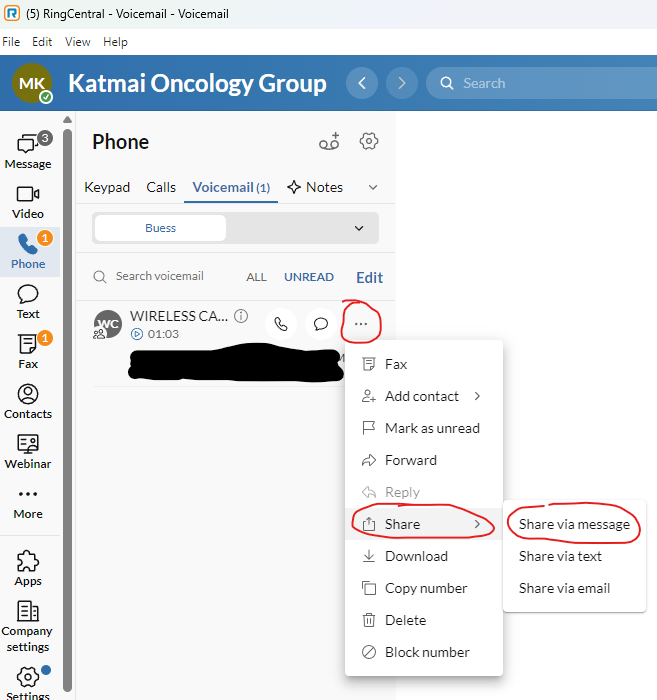
- Click on the 3 dots on the right side of the voicemail.
- Hover over Share.
-
Click Share via message.
-
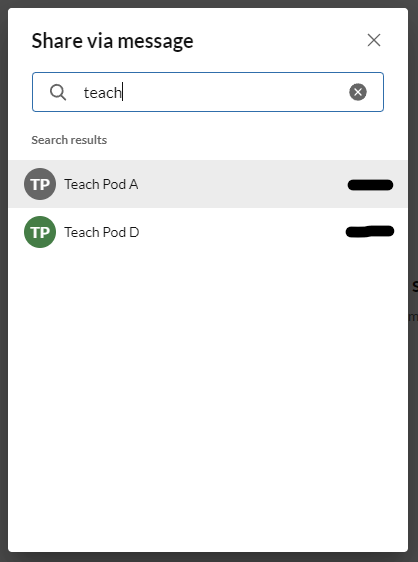
Search for the name or extension of the person you would like to send to. Click their name.
How to Change Your Greetings
NOTE: introduction greeting is played before the call starts ringing. Voicemail greeting is after the receiver has missed the call.
Voicemail Greeting From App
Changing your voicemail from the app does not require a headset.
- If you are not already logged into the RingCentral app, do so, if you do not know how click below for instructions
Logging Into the App -
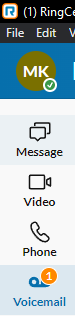
Click on the Voicemail tab on the left side of the app
-
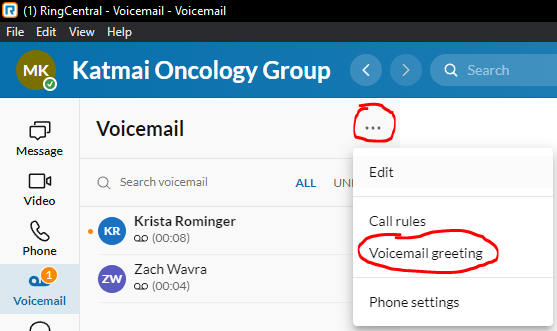
Click on the 3 dots to the right of Voicemail. Then click on Voicemail Greeting
-
Click on Default voicemail type dropdown and selcct Custom
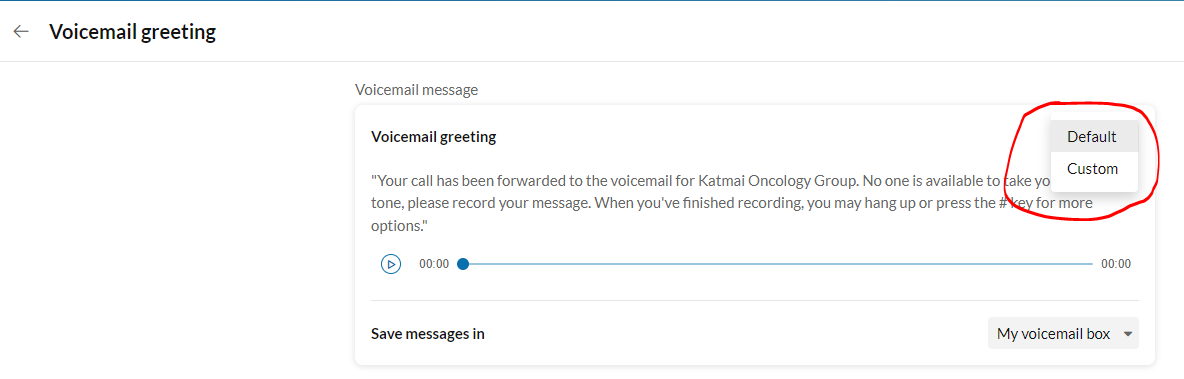
-
If you have a headset under the Computer Microphone tab click the red record button
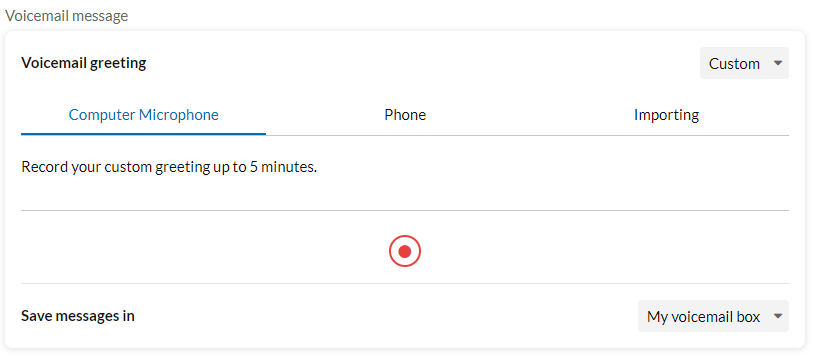
-
If you would like to listen to the recording click the play button.
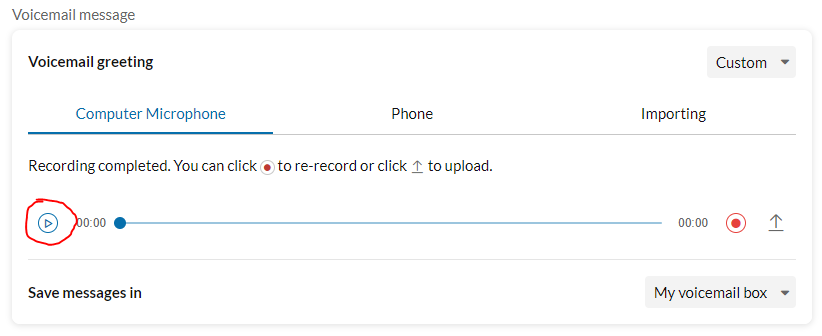
-
If you would like to record a new message click the record button
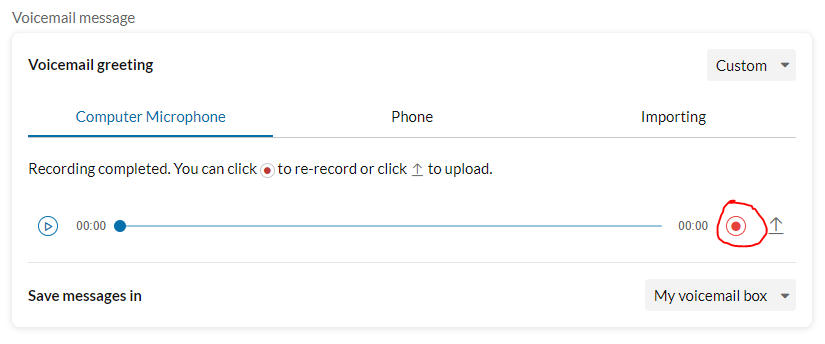
-
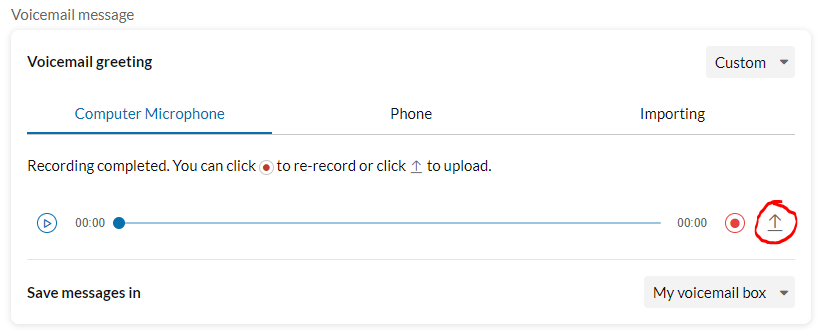
Once you are satisfied with the message click the upload button
-
You will receive a Your custom greeting was uploaded and successfully activated. message, at this point you are done.
-
-
If you do not have a headset click on the Phone tab. Click Enter a new number and enter your phone number. click Call now
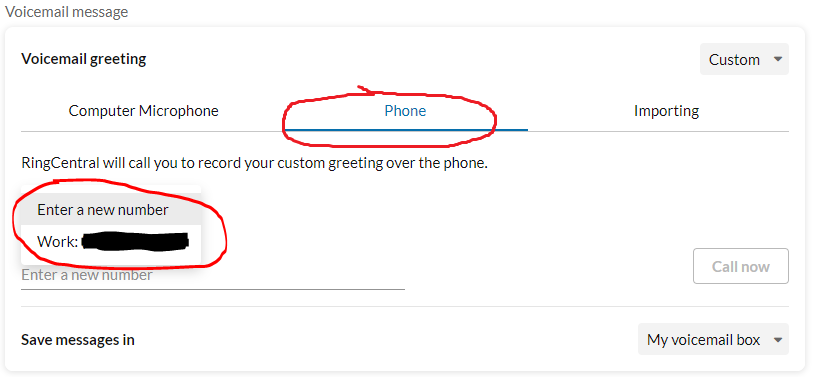
- Answer the call from RingCentral and follow the prompt
Voicemail Greeting From Desk Phone
To change your voicemail greeting from your deskphone
- Click the MESSAGE button
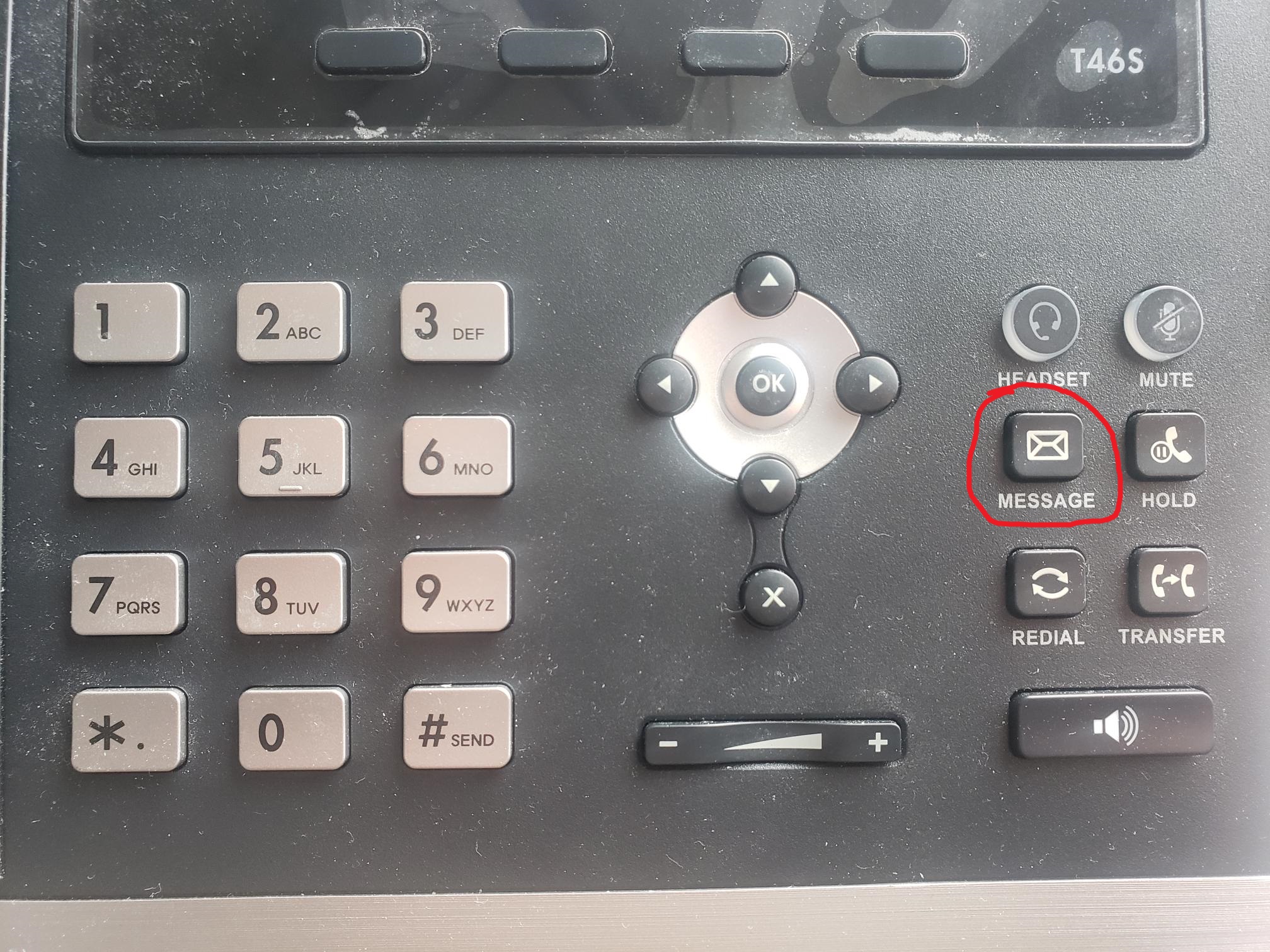
- Enter your voicemail pin then press #
- Press 2 for account administration
- Press 2 to change greetings
- Press 2 to change your voicemail greeting. NOTE: introduction greeting is played before the call starts ringing. Voicemail greeting is after the receiver has missed the call.
- Follow the prompt
Introduction Greeting From App
Changing your voicemail from the app does not require a headset.
- If you are not already logged into the RingCentral app, do so, if you do not know how click below for instructions
Logging Into the App -
Click on the Voicemail tab on the left side of the app
-
Click on the 3 dots to the right of Voicemail. Then click on Voicemail Greeting
-
Click on Default voicemail type dropdown and selcct Custom
-
If you have a headset under the Computer Microphone tab click the red record button
-
If you would like to listen to the recording click the play button.
-
If you would like to record a new message click the record button
-
Once you are satisfied with the message click the upload button
-
You will receive a Your custom greeting was uploaded and successfully activated. message, at this point you are done.
-
-
If you do not have a headset click on the Phone tab. Click Enter a new number and enter your phone number. click Call now
- Answer the call from RingCentral and follow the prompt
Introduction Greeting From Desk Phone
To change your voicemail greeting from your deskphone
- Click the MESSAGE button
- Enter your voicemail pin then press #
- Press 2 for account administration
- Press 2 to change greetings
- Press 1 to change your introduction greeting.
- Follow the prompt