Call Status Light
Call status lights are an external light to indicate whether you are on a call or not.
How to Setup Status Light
- Ensure the USB cable is plugged into your workstation
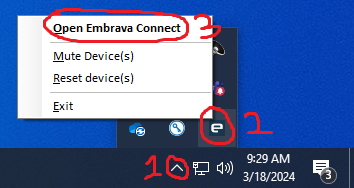
- Open the Embrava Connect application
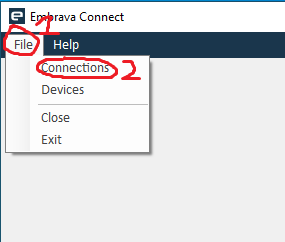
- Click File in the top left and click on Connections
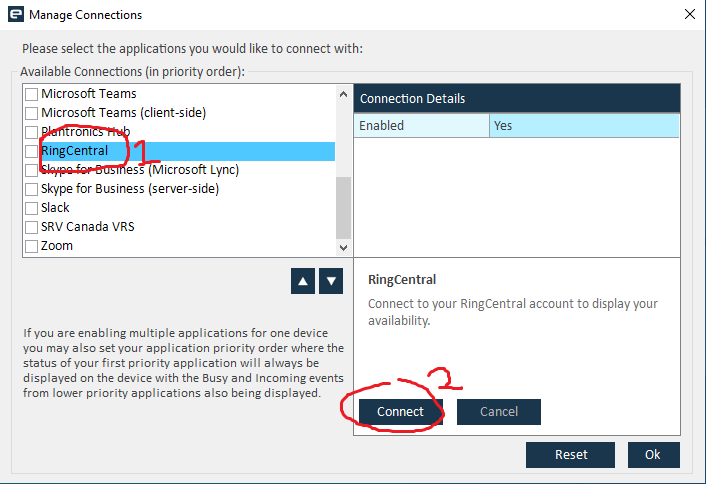
- Find RingCentral in the connections list and click on it. Then click connect.
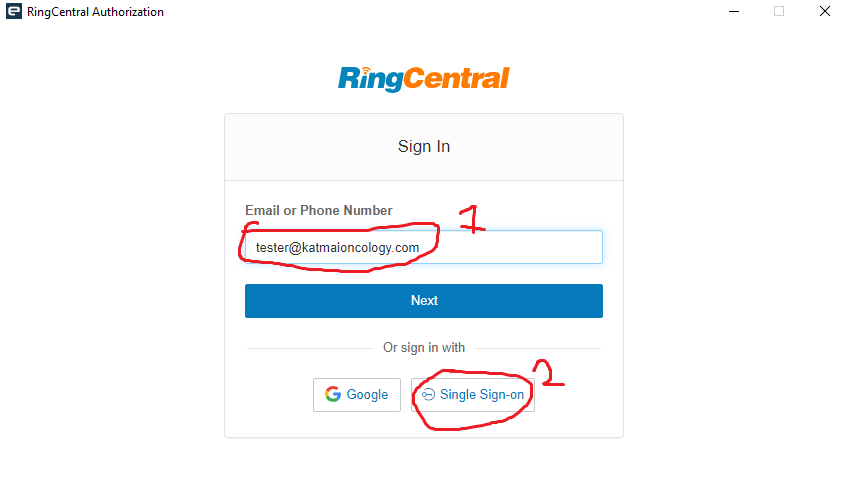
- Enter your email into the email field and click Single Sign-on
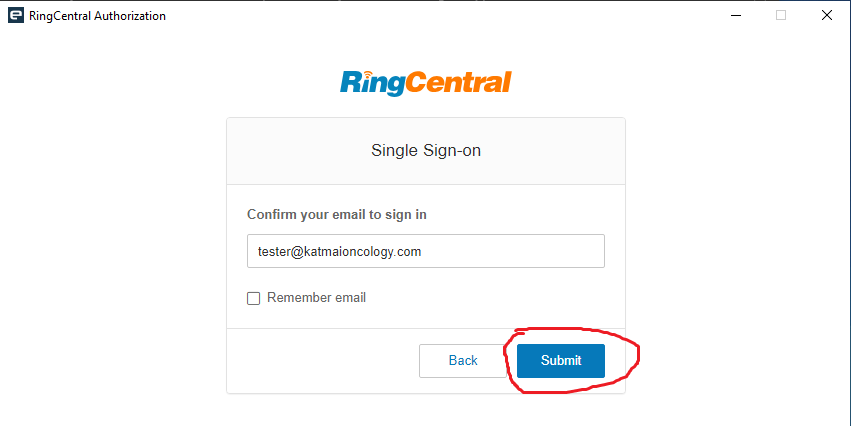
- Click Submit
- Enter your email and click Next
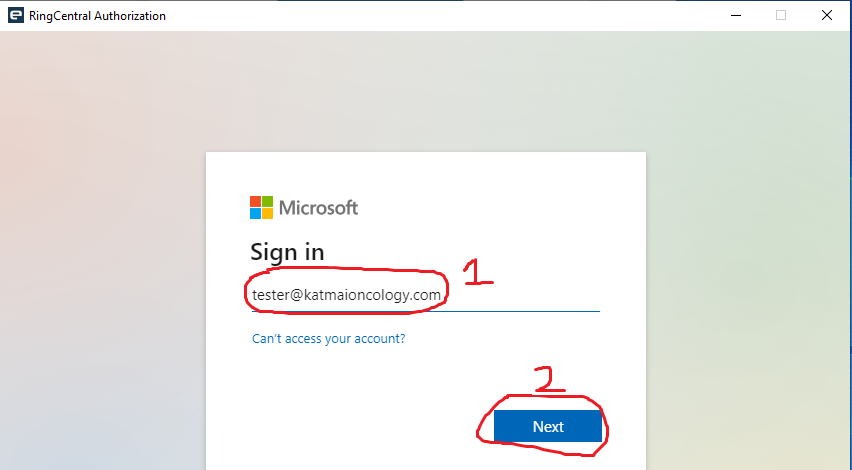
- Continue through the login process, entering your password and MFA prompt.
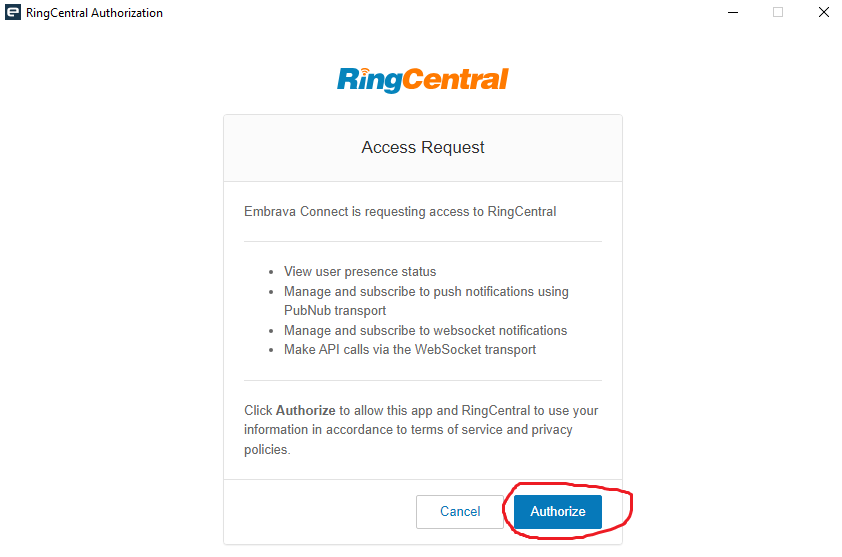
- Click Authorize
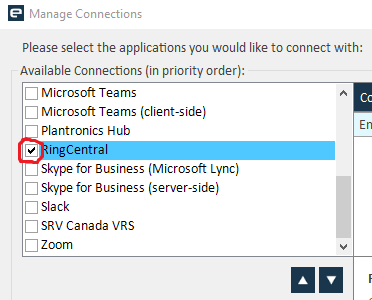
- Check the box next to RingCentral