How to Fax From RingCentral App
Faxing can either be done directly from the app or by printing to the app
Setup Katmai Cover Page
Inorder to use Katmai's cover page when faxing it must first be uploaded.
1. In the app click on the Fax tab
2. select the new fax button
3. Click on the cover page option
4. click Add cover page 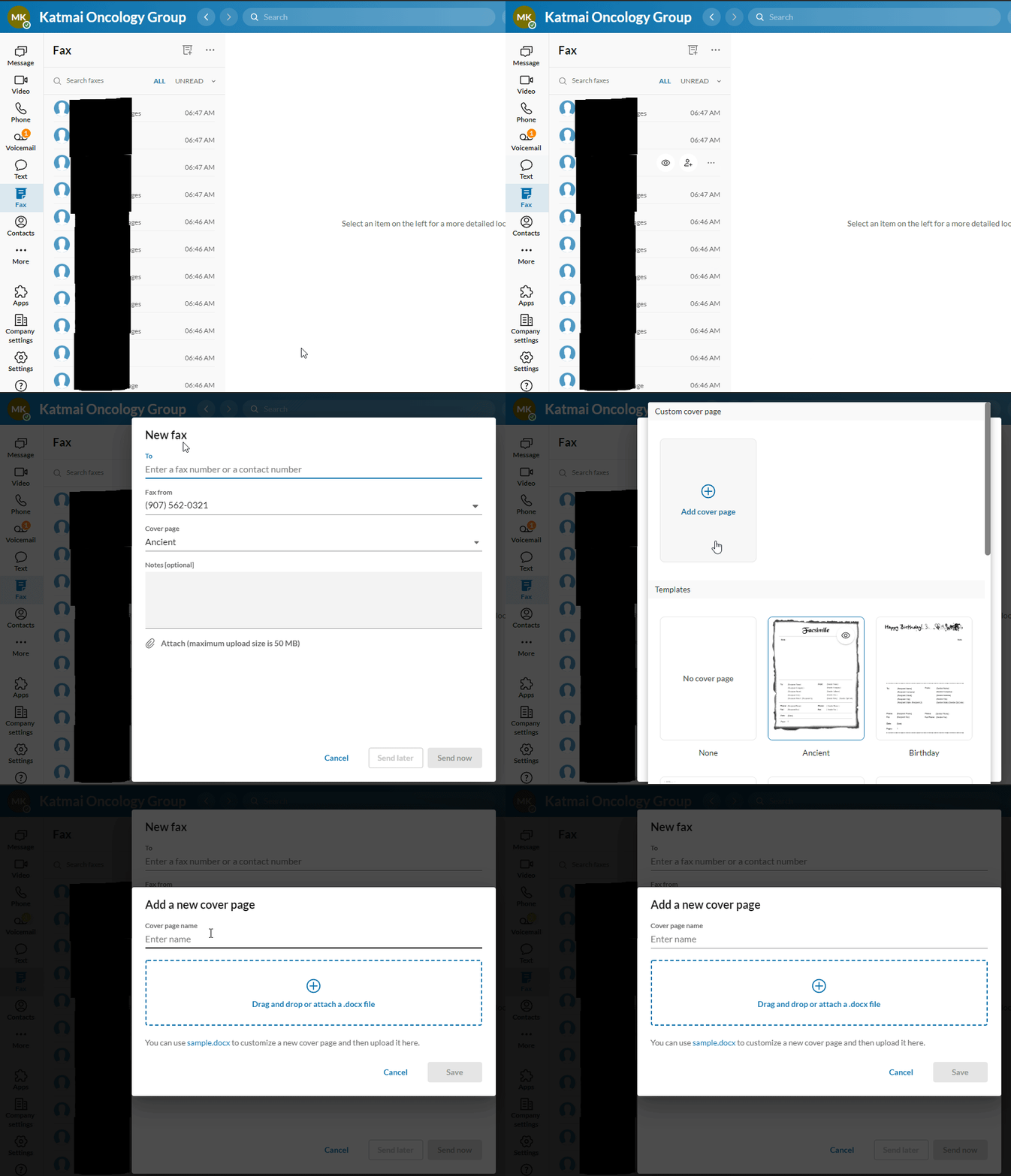
5. Download the cover page HERE
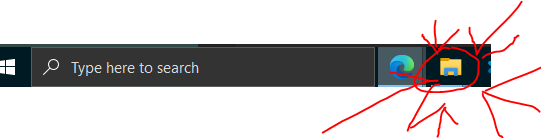
6. Navigate to your Downloads folder in File Explorer
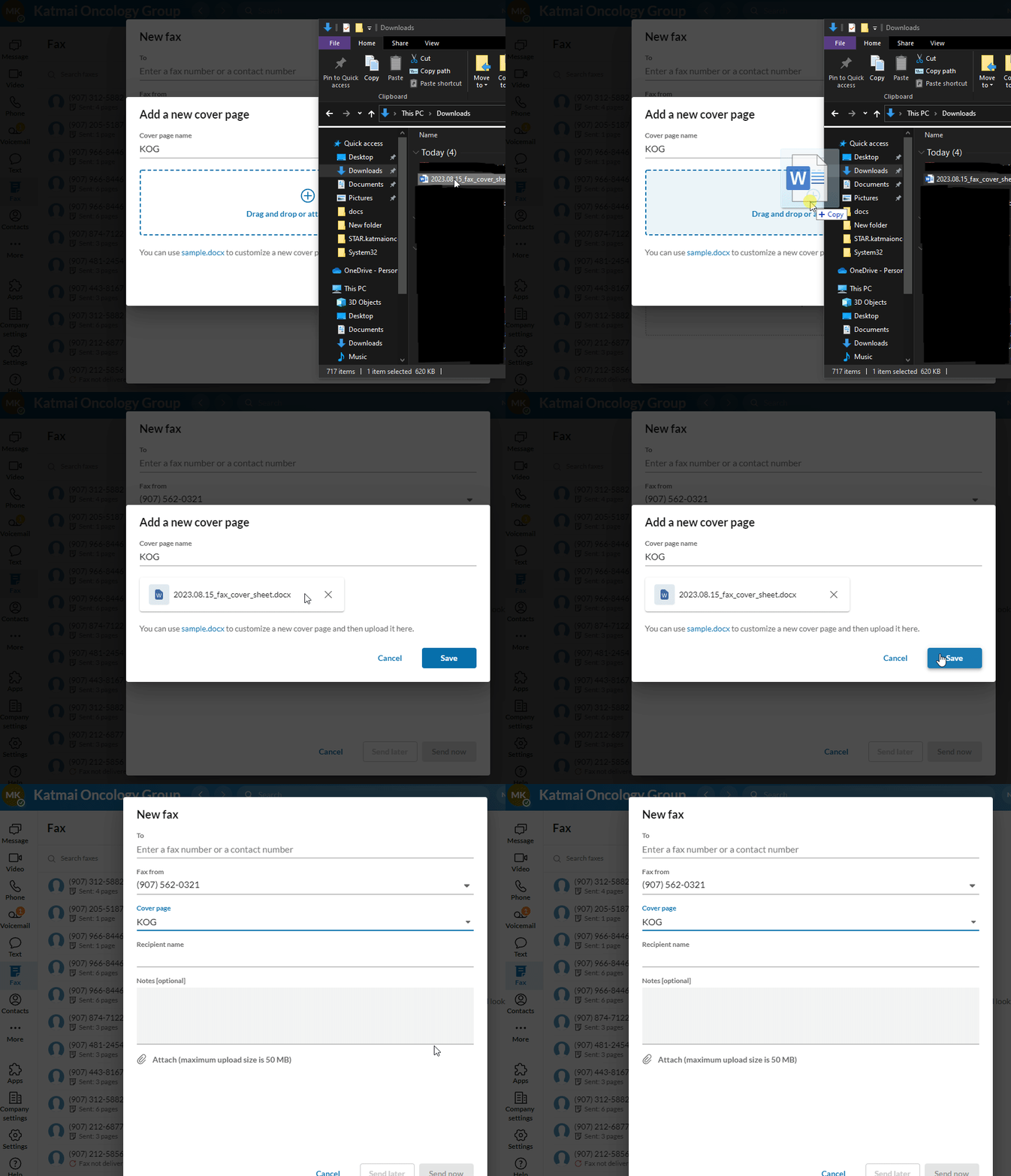
7. Drag and drop the downloaded file from File Explorer to the upload box in RingCentral app
Faxing Directly From App
- Go to the fax tab within the RingCentral app and click on the new fax button
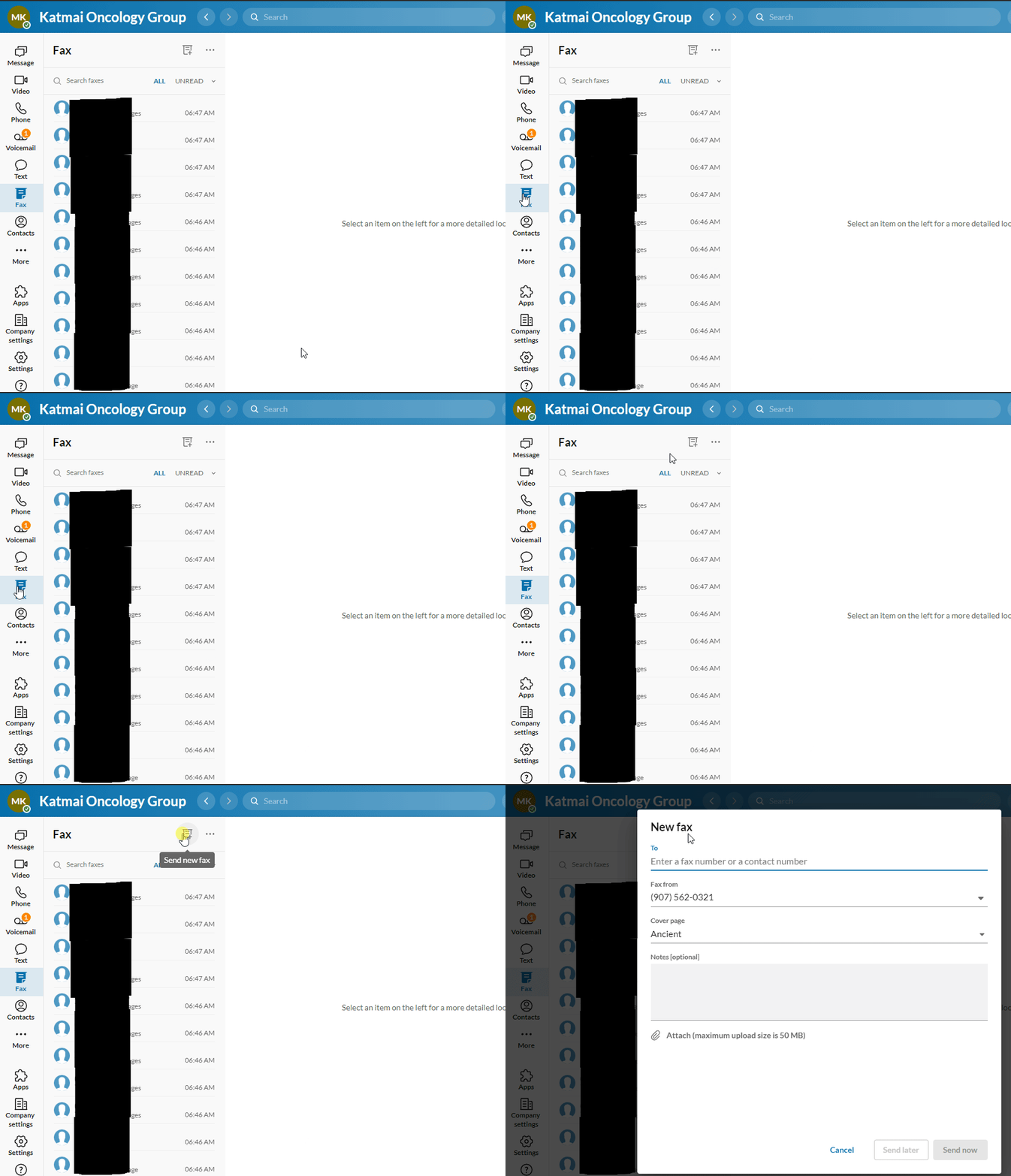
- Faxes can either be sent to a number or a contact
a. To send to a number type in the number and click on the option in the drop down
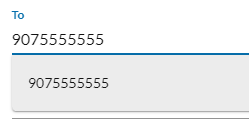
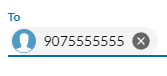
b. To send to a contact type in the name or number of the contact and click on the contact in the drop down

- If the fax is too a specific person, enter the name into the Recipient name field. The cover page does not support the checkboxes or RE line, add those into the notes section if they need to be added
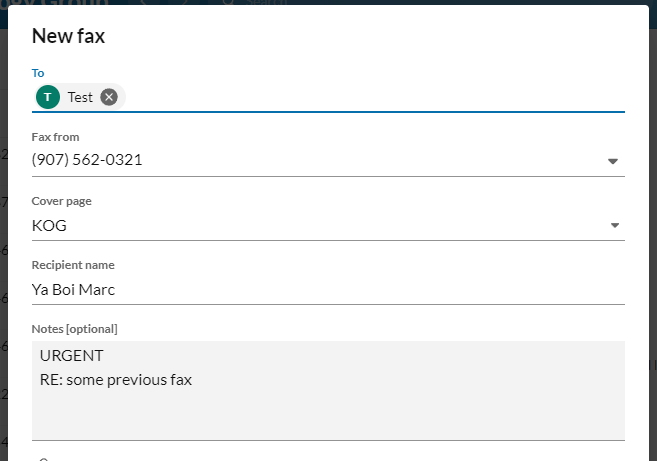
- Drag and drop a PDF file from File Explorer to the attach section to send a PDF
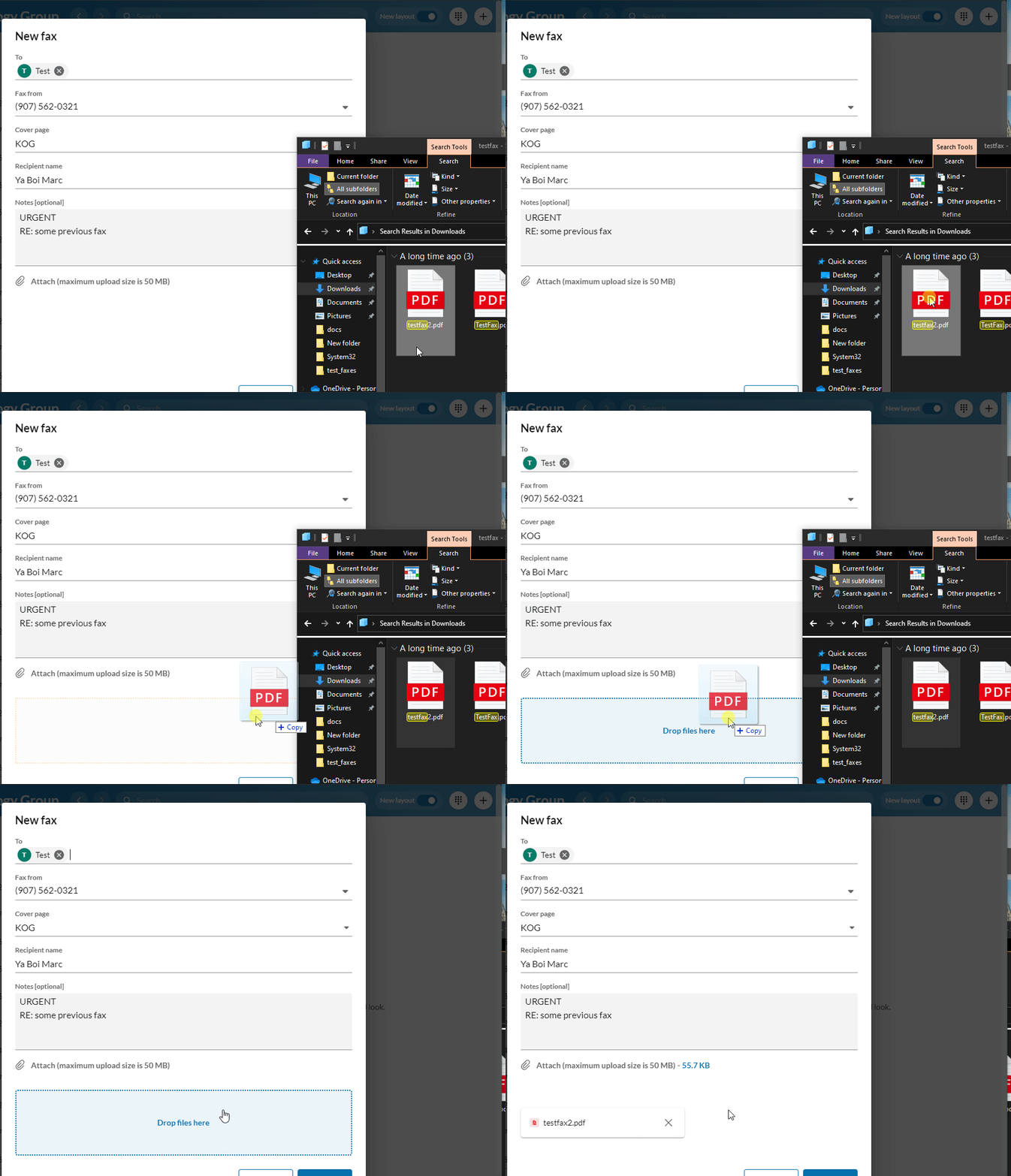
- Hit the send button once the fax is ready to be sent
Print to Fax From App
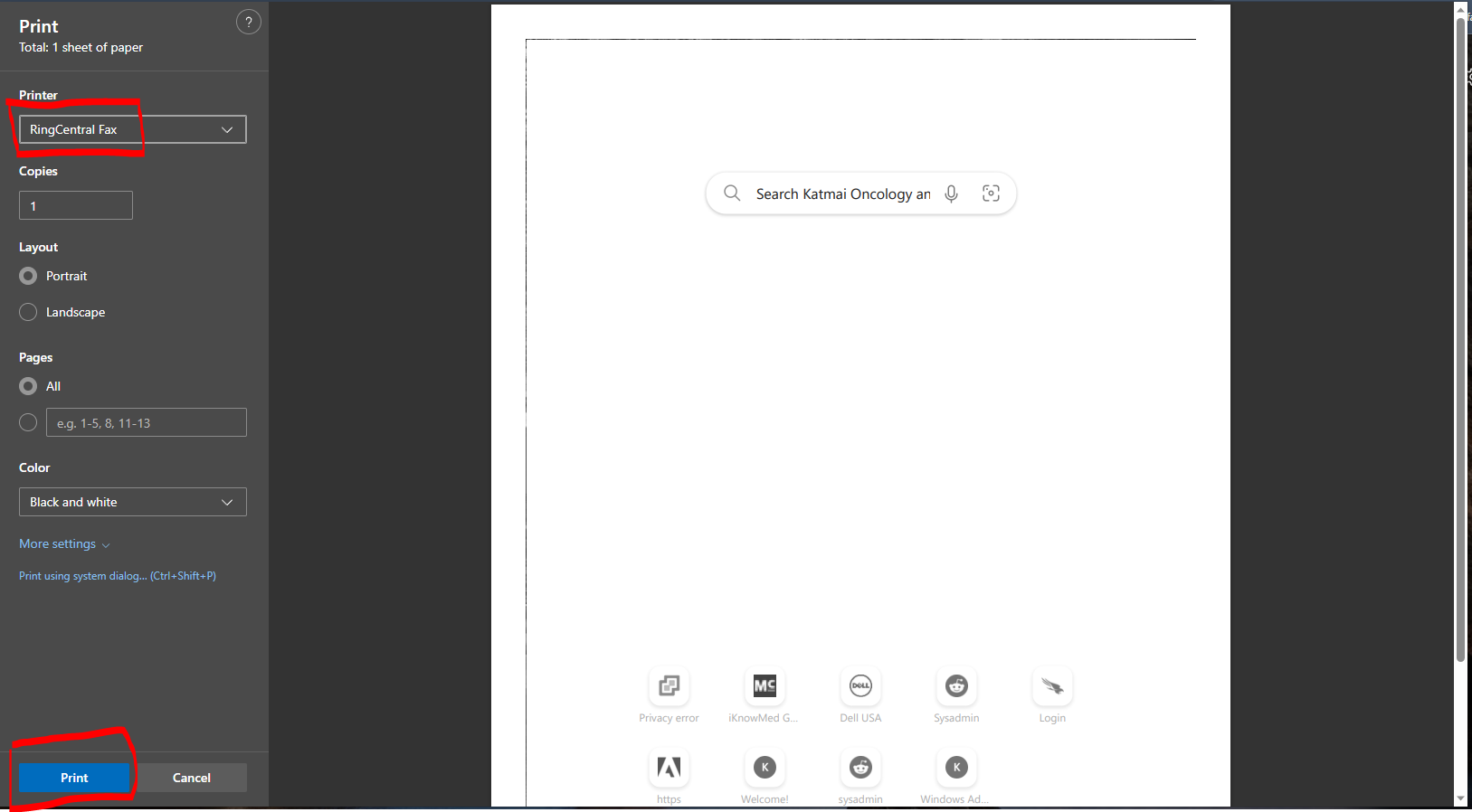
- In any print prompt select RingCentral Fax as the printer. NOTE if RingCentral Fax is not an option please contact Marc to fix
- The printed pages will be automatically attached to the fax
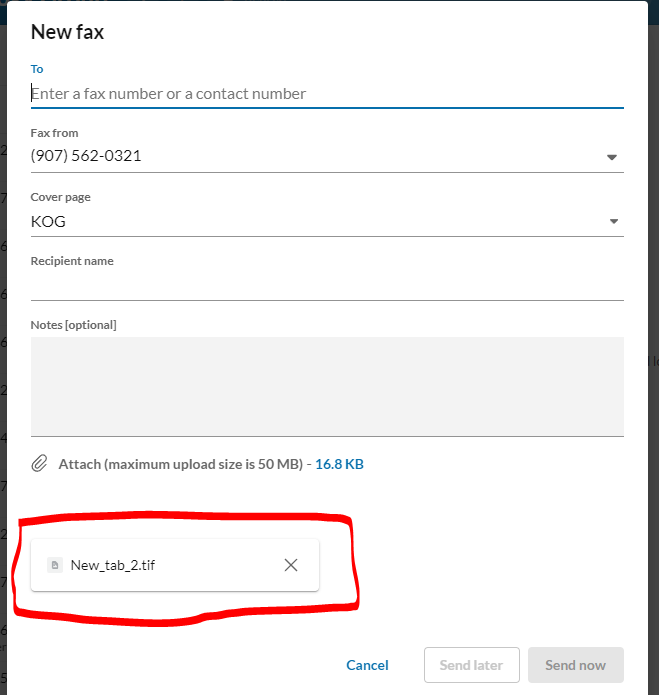
- Fill out the remainder of the fax details and click Send now once ready